

Ever wondered if you blocked someone by mistake—or just want to double-check who’s on your block list? You’re not alone. Knowing how to see blocked numbers on iPhone can save you from missed calls, awkward misunderstandings, or endless guessing.
Apple makes blocking numbers easy, but finding the blocked list isn’t always obvious if you’ve never looked for it before. In this guide, I’ll walk you through exactly where to find blocked numbers on your iPhone, how to manage them, and what to do if something doesn’t look right.
Let’s break it down step by step.
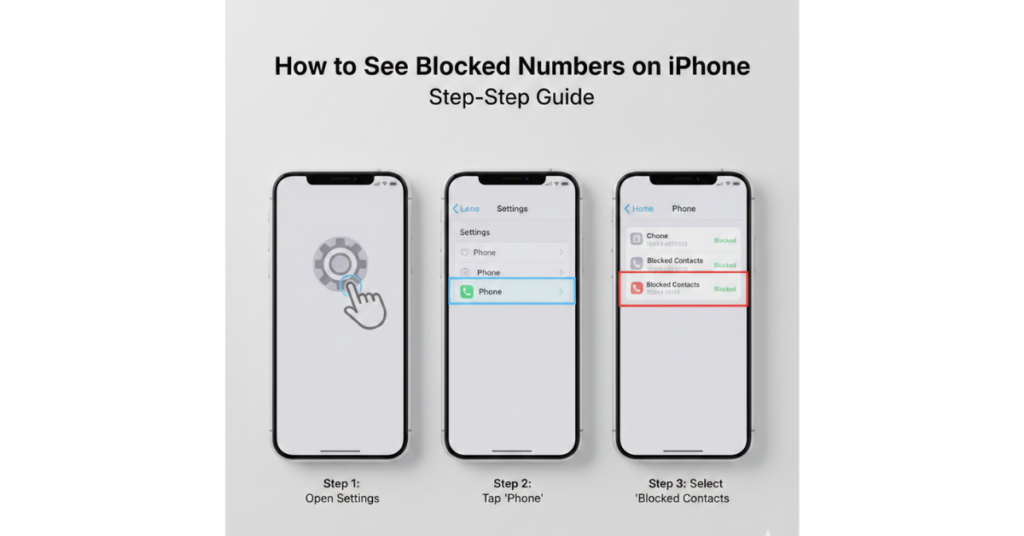
How to See Blocked Numbers on iPhone Main Method
If you’re using iOS, Apple keeps all blocked numbers in one central place. Here’s how to access it:
Steps to View Blocked Numbers on iPhone
-
Open the Settings app
-
Scroll down and tap Phone
-
Select Blocked Contacts
That’s it. You’ll now see a full list of all phone numbers and contacts you’ve blocked.
Quick tip: This list includes:
-
Blocked phone numbers
-
Blocked FaceTime callers
-
Blocked contacts from Messages
How to See Blocked Numbers for Messages and FaceTime
Apple syncs blocked contacts across apps, but you can also check them individually.
Blocked Numbers in Messages
-
Go to Settings
-
Tap Messages
-
Select Blocked Contacts
Blocked Numbers in FaceTime
-
Open Settings
-
Tap FaceTime
-
Choose Blocked Contacts
You’ll notice the same numbers appear across all three sections, which makes managing them much easier.
How to Know If a Number Is Blocked on iPhone
There’s no direct label on a contact saying “blocked,” but there are a few ways to confirm:
-
The number appears in your Blocked Contacts list
-
Calls from that number go straight to voicemail
-
Messages from the number never arrive
-
FaceTime calls don’t ring
If you’re unsure, checking the blocked list is the fastest and most reliable method.
How to Unblock a Number on iPhone
Blocked someone by accident? No problem.
Steps to Unblock a Contact
-
Go to Settings > Phone > Blocked Contacts
-
Swipe left on the number
-
Tap Unblock
Once unblocked, calls and messages will come through normally again.
Can You See Missed Calls From Blocked Numbers?
This is a common question—and the answer is no.
When a number is blocked:
-
Calls don’t show in your call history
-
Messages aren’t delivered or stored
-
Notifications are completely silenced
Apple prioritizes privacy here, so blocked communications are essentially invisible.
Why You Might Want to Check Your Blocked List
There are plenty of practical reasons to review your blocked numbers from time to time:
-
You’re missing important calls
-
A contact says they can’t reach you
-
You blocked spam and want to clean the list
-
You’re troubleshooting call or message issues
A quick check can prevent a lot of confusion.
Common Issues When Viewing Blocked Numbers on iPhone
Blocked List Not Showing
Try these fixes:
-
Restart your iPhone
-
Update to the latest iOS version
-
Make sure Screen Time restrictions aren’t hiding settings
Number Still Can’t Call After Unblocking
-
Ask the caller to restart their phone
-
Check if the number is blocked at the carrier level
-
Ensure Do Not Disturb or Focus mode is off
FAQs: How to See Blocked Numbers on iPhone
Can I see blocked numbers without going to Settings?
No. Apple only allows you to view blocked numbers through the Settings app.
Does blocking a number delete past messages?
No. Old messages remain, but you won’t receive new ones while the number is blocked.
Can blocked numbers leave voicemails?
Yes, but they go directly to voicemail and may not trigger a notification.
Are blocked numbers synced across Apple devices?
Yes. If you’re signed in with the same Apple ID, blocked numbers sync across iPhone, iPad, and Mac.
Can I block unknown callers?
Yes. Enable Silence Unknown Callers in Settings > Phone for extra protection.
Conclusion: Take Control of Your iPhone Call Settings
Knowing how to see blocked numbers on iPhone gives you full control over who can—and can’t—reach you. Whether you’re managing spam calls, fixing a communication issue, or just double-checking your settings, Apple makes it simple once you know where to look.
If you found this guide helpful, consider exploring related topics like:
-
How to block spam calls on iPhone
-
How to recover deleted contacts
-
Best iPhone privacy settings to enable