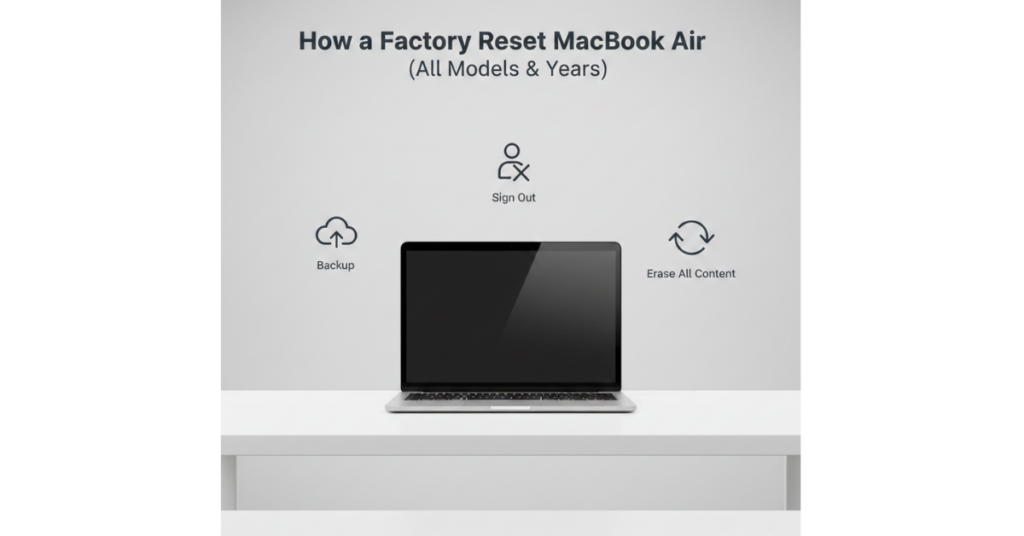

If your MacBook Air has started feeling slow, glitchy, or you’re planning to sell it, a factory reset can feel like hitting the refresh button on your digital life. Knowing how to factory reset MacBook Air properly ensures your data is erased, your system is clean, and the next setup feels brand new.
In this guide, I’ll walk you through everything you need to know—from backing up your data to resetting older and newer MacBook Air models, even if you’ve forgotten the password. Whether you’re using a 2013 classic or a 2020 model, you’re covered.
Why You Might Need to Factory Reset a MacBook Air
A factory reset restores your MacBook Air to its original macOS state. People usually do this when:
-
Selling or giving away their MacBook
-
Fixing performance issues or software bugs
-
Removing personal data for security reasons
-
Starting fresh after years of use
No matter the reason, learning how to factory reset MacBook Air safely is essential to avoid data loss or activation issues.
Before You Factory Reset: Important Things to Do
Back Up Your Data Highly Recommended
Before resetting anything, back up your files using:
-
Time Machine (Apple’s built-in backup tool)
-
An external hard drive or SSD
-
iCloud for essential documents and photos
This step ensures you don’t lose important files permanently.
Sign Out of Apple Services
To avoid activation lock issues later, sign out of:
-
iCloud
-
iMessage
-
FaceTime
You can do this from System Settings > Apple ID.
How to Factory Reset MacBook Air Standard Method
This method works for most users who still have access to their account.
Step 1: Restart in macOS Recovery Mode
-
Shut down your MacBook Air
-
Turn it on and immediately hold Command (⌘) + R
-
Release the keys when you see the Apple logo
Step 2: Erase the Startup Disk
-
Select Disk Utility
-
Choose Macintosh HD
-
Click Erase
-
Format as APFS (or Mac OS Extended for older macOS versions)
Step 3: Reinstall macOS
-
Exit Disk Utility
-
Select Reinstall macOS
-
Follow the on-screen instructions
Once complete, your MacBook Air will restart like it’s brand new.
How to Factory Reset MacBook Air Without Password.
Forgot your login password? Don’t panic.
You can still factory reset by:
-
Entering Recovery Mode (Command + R)
-
Opening Disk Utility
-
Erasing the startup disk
-
Reinstalling macOS
If the Mac is linked to an Apple ID, you’ll need those credentials to complete setup. This is Apple’s security feature, not a bug.
How to Factory Reset MacBook Air by Model Year
While the steps are similar, older and newer models have slight differences.
How to Factory Reset MacBook Air 2013, 2014, 2015.
-
Use Command + R to access Recovery Mode
-
Format disk as Mac OS Extended (Journaled) if using older macOS
-
Reinstall macOS via internet recovery if needed
These models don’t have Apple Silicon, so the process is straightforward.
How to Factory Reset MacBook Air 2017.
-
Same steps as earlier Intel models
-
Ensure firmware password is disabled if previously enabled
-
Use internet recovery (Option + Command + R) for latest macOS
How to Factory Reset MacBook Air 2018, 2019
These models include Apple’s T2 Security Chip.
Important notes:
-
You must sign out of iCloud first
-
Disk format should be APFS
-
Activation Lock may appear if Apple ID isn’t removed
How to Factory Reset MacBook Air 2020
If you’re using an Intel-based 2020 model:
-
Follow standard recovery steps
If it’s Apple Silicon (M1):
-
Shut down the Mac
-
Hold the Power button until “Loading startup options”
-
Select Options > Continue
-
Erase disk and reinstall macOS
How to Factory Reset MacBook Air 13-Inch Models
All 13-inch MacBook models follow the same reset process based on their year and processor type. Screen size doesn’t affect the steps.
Common Mistakes to Avoid
-
Skipping the iCloud sign-out
-
Not backing up files
-
Choosing the wrong disk format
-
Interrupting macOS installation
Avoiding these ensures a smooth and stress-free reset.
FAQs: Factory Resetting MacBook Air
Does factory reset remove everything?
Yes, it deletes all files, apps, and user data, restoring the system to default settings.
Can I factory reset a MacBooks Air I’m selling?
Absolutely—and you should. It protects your privacy and prepares the Mac for the next owner.
What if my MacBooks Air won’t enter recovery mode?
Try Internet Recovery using Option + Command + R or check your keyboard.
Is factory reset safe for older MacBook Air models?
Yes. Even models from 2013 or 2014 can be safely reset using recovery mode.
Conclusion: A Fresh Start Made Simple
Knowing how to factory reset MacBook Air gives you full control over your device—whether you’re fixing problems, protecting your data, or preparing it for someone else. The process may sound technical, but once you follow the steps, it’s surprisingly simple.
If you’re planning to upgrade, troubleshoot further, or learn how to optimize macOS performance after a reset, explore related guides to get even more value from your Mac.